IPTV Has Video but No Sound in Your Browser? Here's Why and How to Fix It
September 26, 2026 · 7 min read
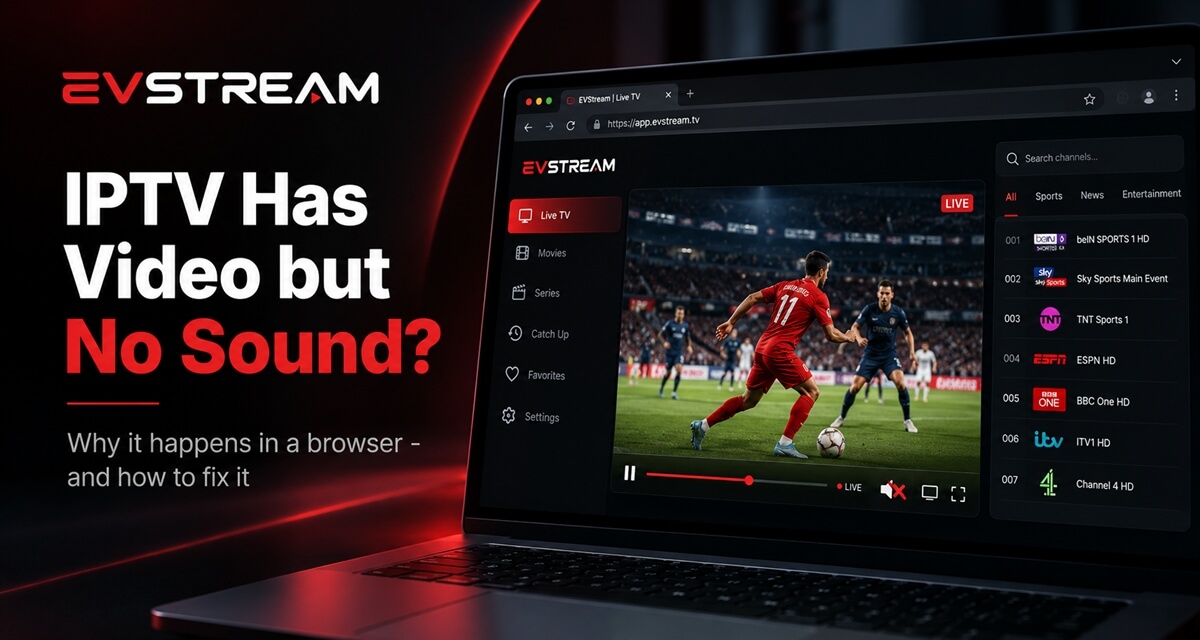
You open an IPTV channel in your browser.
The picture looks fine. The stream is playing. There are no obvious errors.
But there is no sound.
It can be confusing, especially when the exact same channel works perfectly in an IPTV app on your phone, TV or another device.
The good news is that this does not always mean your IPTV stream is broken.
In many cases, the problem comes down to browser compatibility and the audio format being used by that particular stream.
Let's look at why this happens, what you can check, and what you can do about it.
Why Does IPTV Have Video but No Sound?
An IPTV stream usually contains separate video and audio tracks.
Your browser needs to understand both.
Sometimes the browser can decode the video format perfectly but cannot properly handle the audio format used by the IPTV provider.
The result is exactly what you would expect:
The video plays, but you hear nothing.
Video track
Your browser decodes it
Audio track
Format it can't handle
One stream, two tracks - and only one of them has to fail.
This can happen in Chrome, Edge, Safari, Tesla browsers and other browser-based environments.
Different browsers and devices don't support every audio and video format in the same way. That's why the same IPTV stream can work on one device but have problems on another.
Why Does the Same IPTV Channel Have Sound in an App?
This is one of the most common questions.
You might open a channel in a native IPTV app and everything works perfectly. Then you open the same provider in a browser and suddenly there is no audio.
The reason is simple. IPTV apps can use their own players and support audio formats that a web browser may not handle properly.
A browser is limited by the audio and video formats supported by the browser and the device you're using.
That means an IPTV app may understand an audio format that your browser does not handle in the same way.
Neither your IPTV subscription nor the channel necessarily changed.
You simply changed the player.
This is one of the reasons choosing the right player can make such a big difference. We talk more about this in A Better IPTV Experience Starts With the Player.
Why Do Some IPTV Channels Have Sound and Others Don't?
This can make the problem even more confusing.
Let's say you have 500 channels.
Channel A works perfectly.
Channel B has video but no sound.
Channel C works again.
If they all come from the same IPTV provider, why aren't they behaving the same way?
Because IPTV providers do not necessarily use the same media configuration for every channel.
Different channels can use different audio and video formats. That's why one channel may work perfectly while another has no sound.
We touched on this problem in our Xtream IPTV Player guide, because dealing with different providers, formats and stream configurations is one of the challenges of building an IPTV player that runs inside a browser.
Check the Simple Things First
Before assuming you have a codec or browser compatibility problem, check a few basic things.
1. Make sure the player isn't muted
It sounds obvious, but check the volume button inside the video player first.
Also check the volume on your computer, phone, tablet or car browser.
2. Try another IPTV channel
Open several channels from the same provider.
If none of them have sound, the problem may be broader than one particular stream.
If only one or two channels have the problem, they may simply be using a different audio format.
3. Try another browser or device
If possible, open the same channel somewhere else. For example: Chrome, Edge, Safari, your phone, your laptop, or another IPTV application.
If the channel has sound on another device or player, the stream is probably fine. The problem is more likely related to browser compatibility.
4. Update your browser
Older browser versions may have more limited media support or playback issues that have already been improved in newer versions.
If you're using a desktop or mobile browser, make sure it is reasonably up to date.
Older Browsers Can Be More Difficult
Browser-based IPTV becomes particularly challenging on older devices and embedded browsers.
Browsers built into cars, TVs, and older devices may support fewer audio and video formats than a modern browser on a computer.
Tesla and other EV browsers are good examples.
You can open modern websites and browser apps on them, but their media environment can still behave differently from a desktop browser.
That's why an IPTV stream can work perfectly on your laptop but behave differently on another device.
This is one of the reasons EVStream includes Flex Mode.
Flex Mode was designed to give EVStream an alternative playback method for browsers and devices where standard browser playback may have compatibility limitations.
You can learn more about using IPTV directly in a Tesla browser in our guide on watching IPTV in your Tesla and EV browser.
Can an IPTV Player Fix No-Sound Problems?
Sometimes.
It depends on what is causing the problem.
If the audio is there but your browser can't play it properly, a player with better compatibility support may solve the problem.
That is one of the areas we have focused on while building EVStream.
EVStream isn't just a basic video element with an IPTV interface placed around it.
IPTV providers don't all deliver their streams in the same way, so we've spent a lot of time improving how EVStream handles different channels, movies, and series.
Our goal is simple - you shouldn't have to think about codecs, formats, or browser limitations just to watch IPTV.
You choose something to watch and the player handles the rest.
There is one important exception. If the problem comes directly from the IPTV provider, a player may not be able to fix it.
If a channel is being sent without a working audio track, no player can create sound that isn't there.
That's why testing the same stream on another device or player can be useful.
Try the Same IPTV Provider in EVStream
If you already have an IPTV provider that supports Xtream Codes, you can test it directly in EVStream.
You don't need to install another application.
Open evstream.app, then enter the server URL, username and password supplied by your IPTV provider and connect.
If you're not sure what those details mean, our step-by-step Xtream Codes setup guide explains the entire process.
EVStream does not provide IPTV subscriptions, channels, movies or series.
You bring your existing IPTV provider and EVStream provides the player.
If you prefer using IPTV without installing software on every device, you can also read our guide on how to watch IPTV online without installing any apps.
Why Browser-Based IPTV Can Still Be Worth It
Browser playback comes with technical challenges, but it also has a big advantage.
Convenience.
You don't need a different IPTV application for every device.
You can open your browser on a laptop, desktop, tablet, phone or supported EV, connect your provider and access your content.
There are no app downloads and no manual installations.
That's why we've continued investing in browser compatibility rather than simply telling users to install another app whenever a stream behaves differently.
If you're deciding whether a browser player makes sense for you, our guide to choosing the best IPTV player for browser streaming goes into more detail.
IPTV No Sound - Frequently Asked Questions
Why does IPTV have sound on my phone but not in Chrome?
The IPTV app on your phone and Chrome may use different playback technology and support different audio formats. If the stream works in the app but not in Chrome, browser compatibility may be the reason.
Why do only some IPTV channels have no sound?
Channels from the same provider can use different audio formats and stream configurations. One channel may work perfectly while another has an audio format your current browser struggles to play.
Will changing browsers fix IPTV sound?
It can.
Different browsers and operating systems can have different media capabilities. Testing another browser is one of the easiest ways to determine whether the issue is browser-specific.
Does no sound mean my IPTV provider is broken?
Not necessarily.
If the picture plays correctly, the problem could simply be related to the audio track and your current playback environment.
However, if the same channel has no audio on every player and every device you test, the problem may be coming from the IPTV provider itself.
Can EVStream fix IPTV audio compatibility problems?
EVStream includes compatibility handling and alternative playback methods designed to improve playback across different IPTV streams, browsers and devices.
Whether a particular stream can be played depends on how that provider delivers it and whether a working audio track is actually available.
Final Thoughts
If your IPTV has video but no sound in a web browser, don't immediately assume your IPTV subscription is broken.
Start with the basics.
Check that the player isn't muted, try another channel, test another device or browser and see whether the problem follows the stream.
If the problem only happens in certain browsers or on certain channels, browser compatibility is probably the reason.
And that's exactly the kind of problem we've been working on with EVStream.
If you already have an IPTV provider, you can try it directly in your browser at evstream.app.
No installation required.
Open your Tesla browser and try it today
Charge your car. Stream your favorites.
Launch EVStream.app